Password protecting your documents is a necessity to secure the data in your file. This way, you can share files safely with a few selective people by sharing the password.
There are multiple ways to password-protect a PDF file, including Adobe Acrobat, novaPDF, etc. You can encrypt an existing PDF with these tools. To encrypt a word document with AES encryption, let's directly convert it into a password-protected PDF.
Can You Rely on Microsoft’s Password Protection?
Microsoft's encryption schemes up until Office 2003 were weak. With most cracking software, it was easy to crack the code. Since Office 2007, Microsoft has been using Advanced Encryption Standard (AES), strong encryption that leaves no loophole for password cracking software.
If you restrict editing access with a password and let others view the files, these files are not fully encrypted, so they can easily be cracked. Other than restricting editing access, go for full encryption with a password to fully secure your files.
Additionally, always save files in DOCX format. Earlier versions of Microsoft Office may store files in the doc format, which you cannot fully encrypt.
Password Protecting Word File
Before moving on to converting the word file directly into a password-protected PDF, let's discuss how you can password protect a word document. Additionally, what limitations you will encounter when converting a password-protected word file to another format.
1. Open the Word file.
2. Go to the File menu.
3. Click on Protect document.
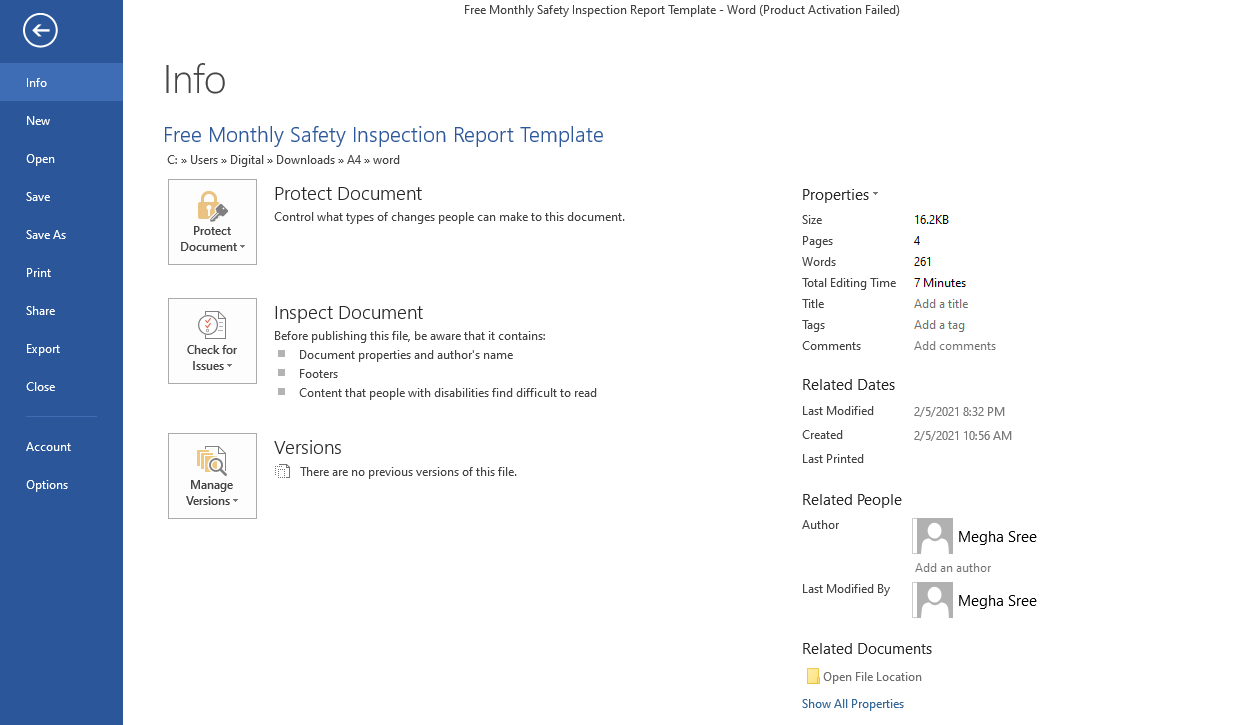
4. Go to Encrypt with password.
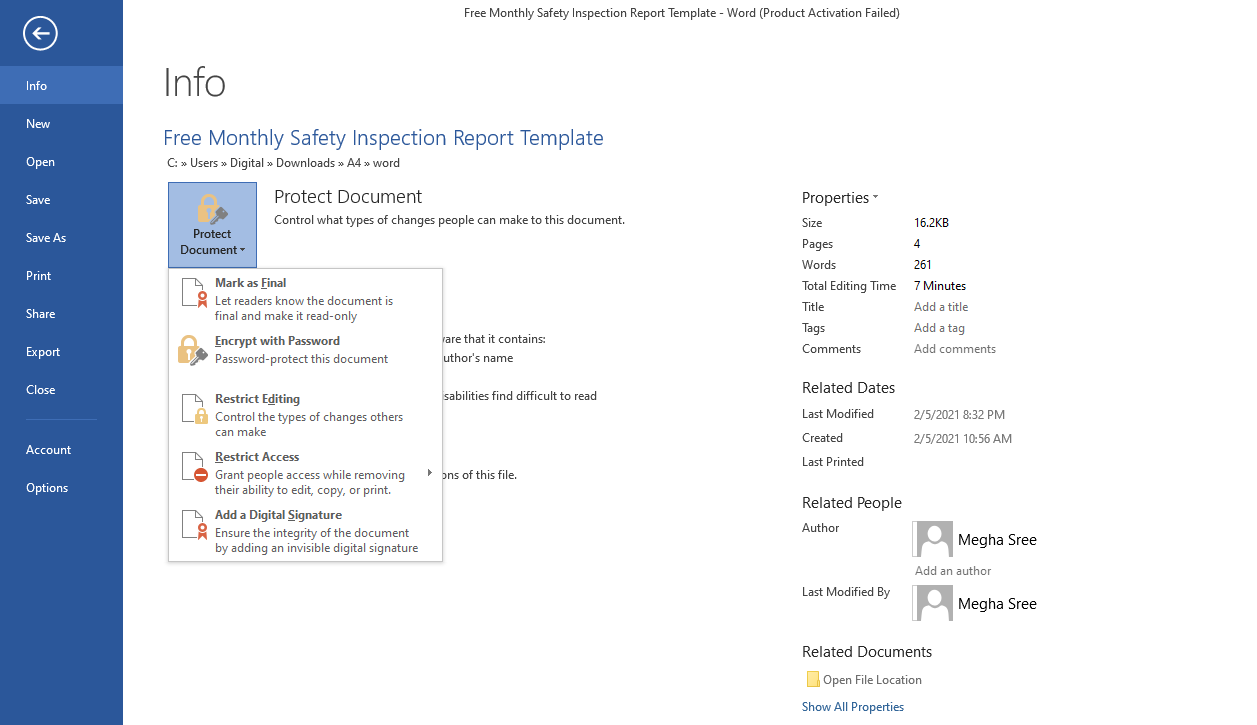
5. Enter the password.
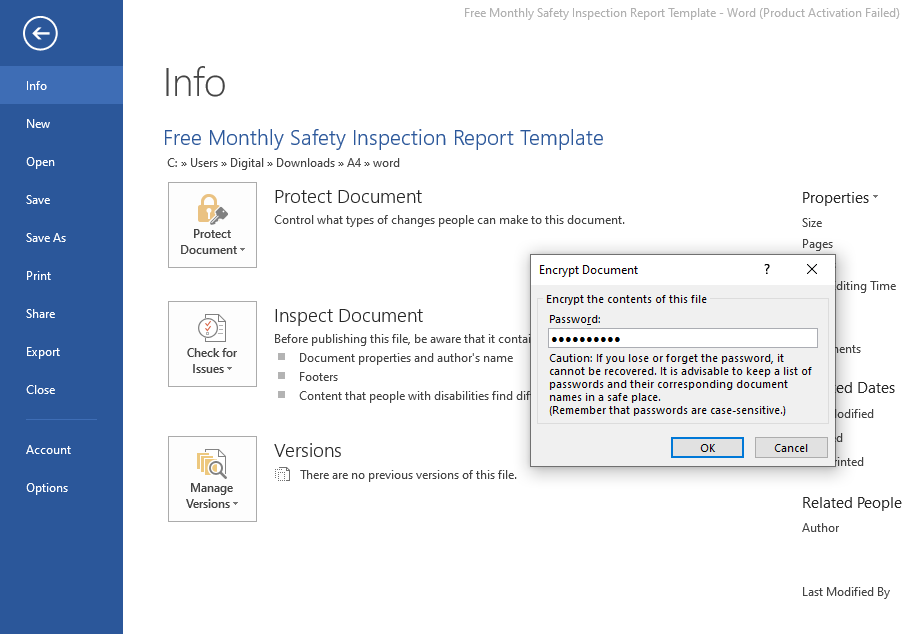
6. Reenter the same password again.
Your word file is now password protected. Everyone, including you, can only open this file with the encrypted password.
There is no other way to access the file if you forget the password. So, write down the password and save it somewhere.
Limitations of Converting Password-Protected Word Documents
Directly saving a password-protected Word file into another format will remove the password protection. Thus, you will have to password-protect the PDF again using different encryption methods.
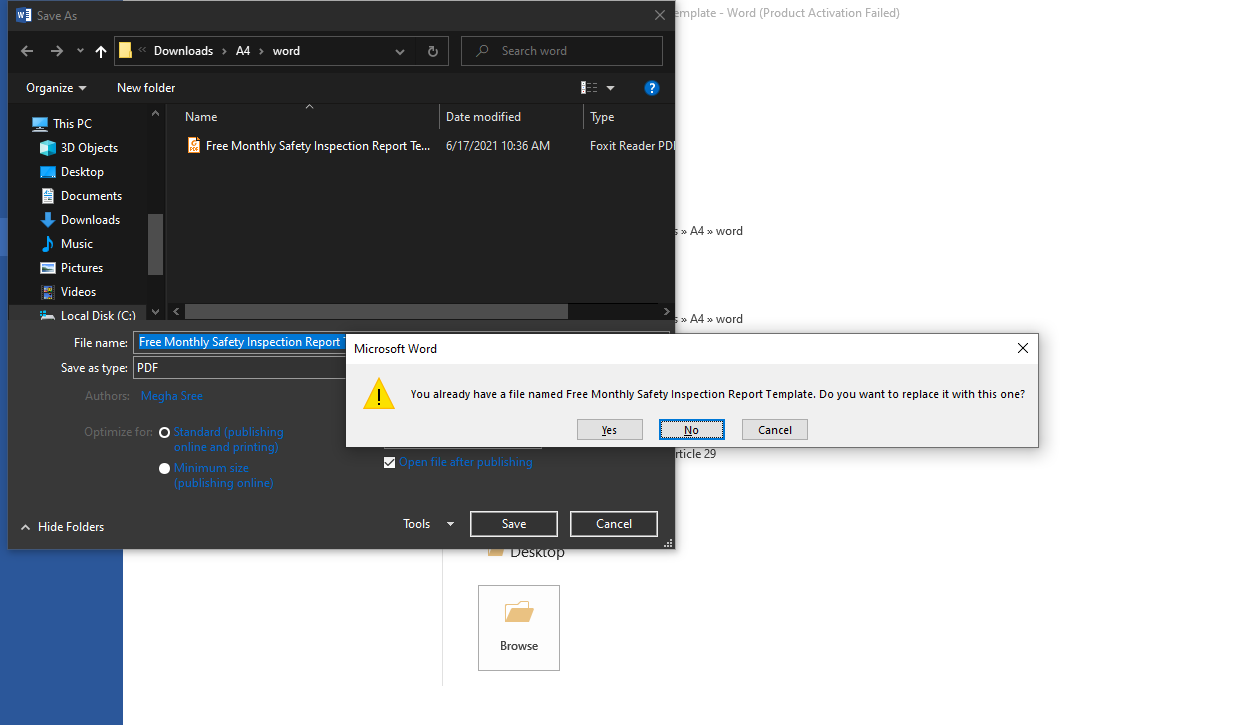
You can, however, convert a DOCX file directly into a password-protected PDF with Word. Here's how you can do it.
Converting Word File Directly Into Password Protected PDF
1. Go to File Menu.
2. Click on Export.
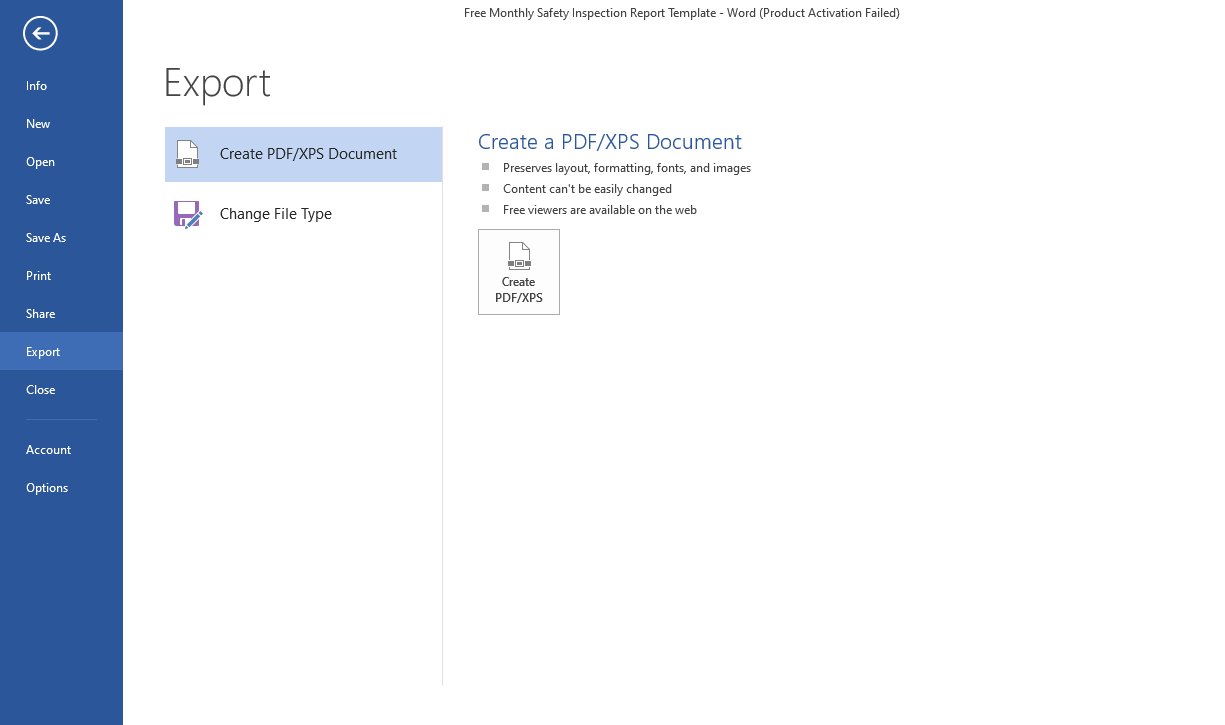
3. Click on Create PDF/XPS.
This will export the Word file into PDF format.
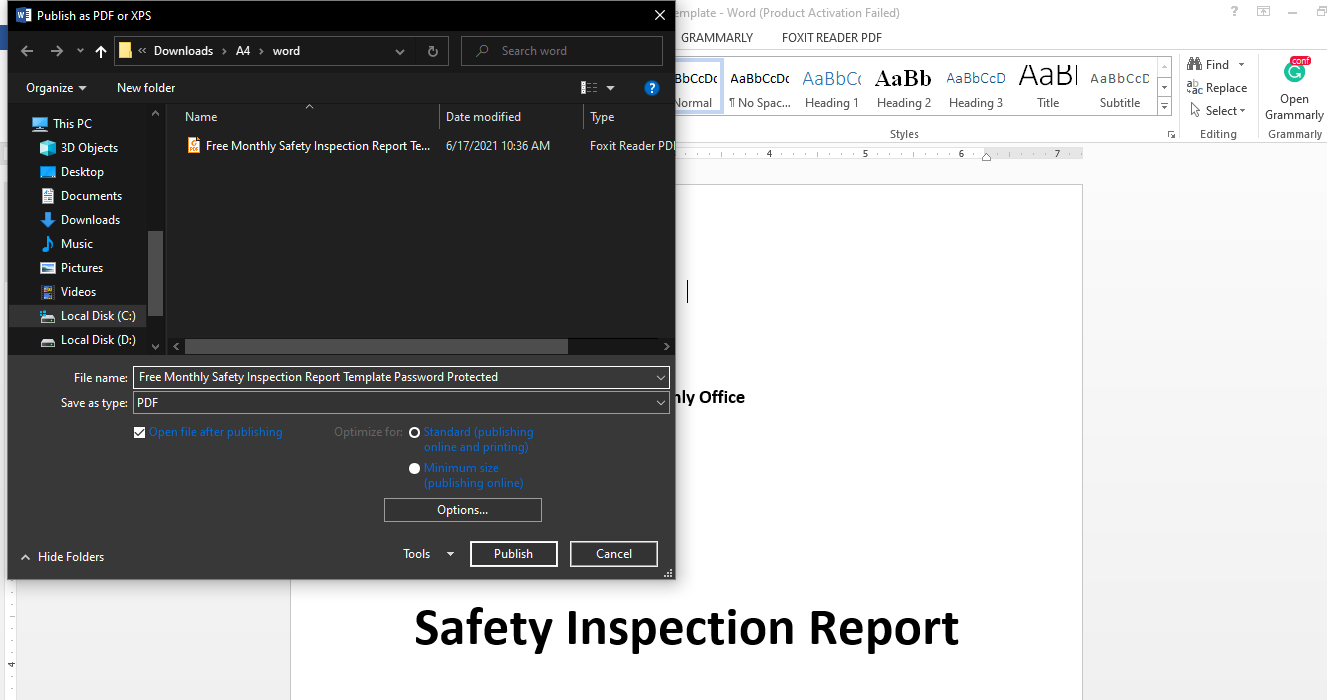
Before you save the file, click on the Options button right above Publish.
4. Open Options settings in the save dialog window.
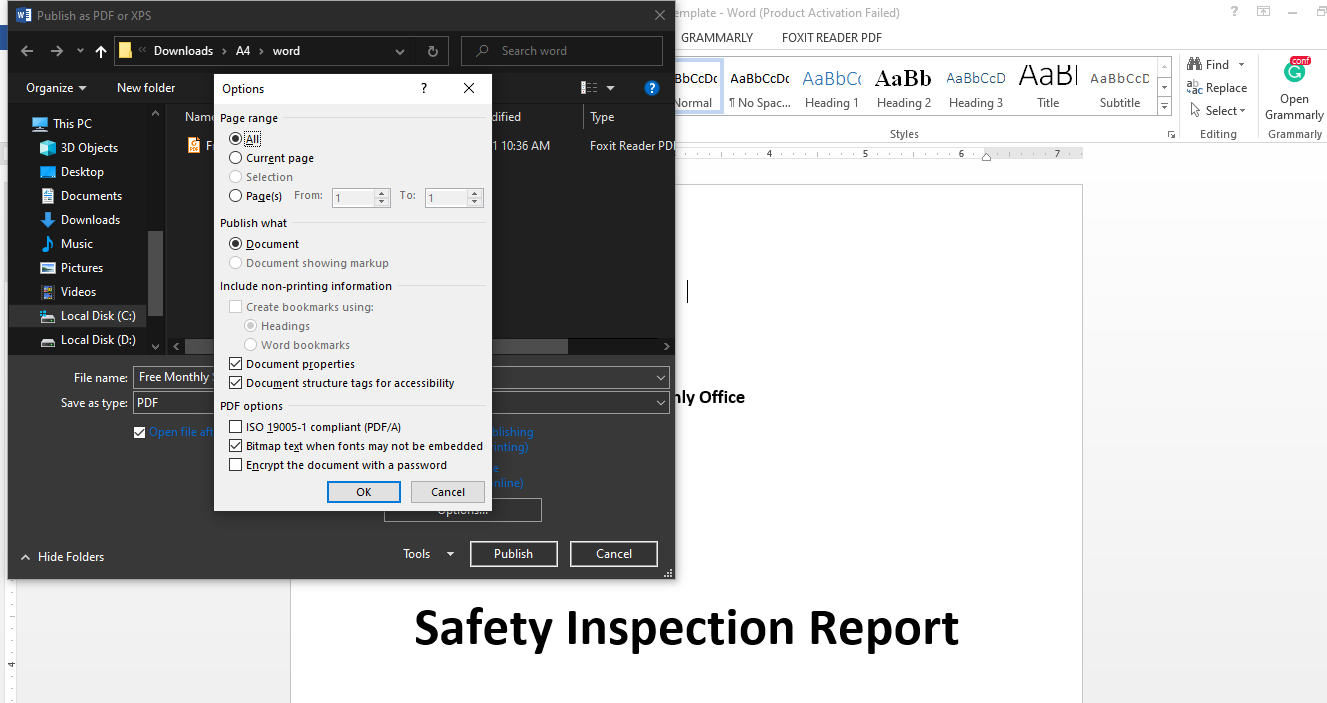
5. Checkmark the last box, "Encrypt the document with a password."
6. Click OK.
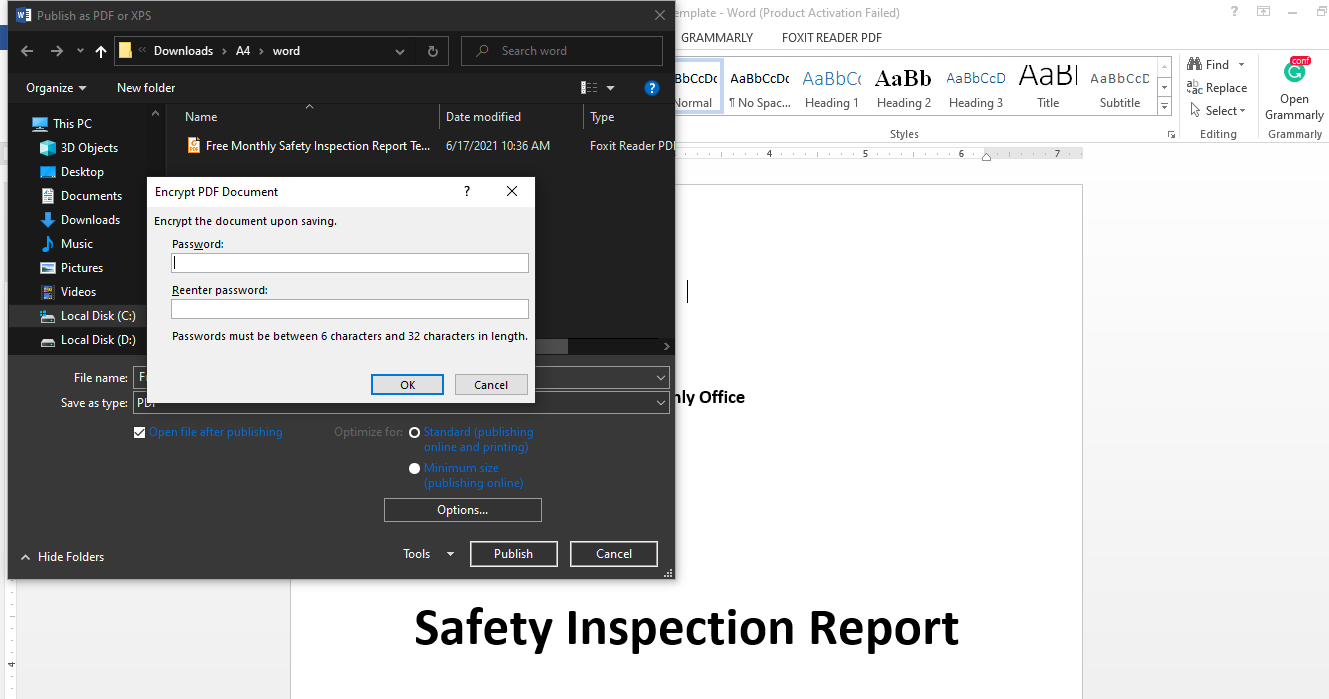
A dialog box will appear, as shown above, asking you to enter the password.
7. Enter and re-enter the password twice.
8. Click on OK.
When you hit publish, Word will automatically save your document as a password-protected PDF.
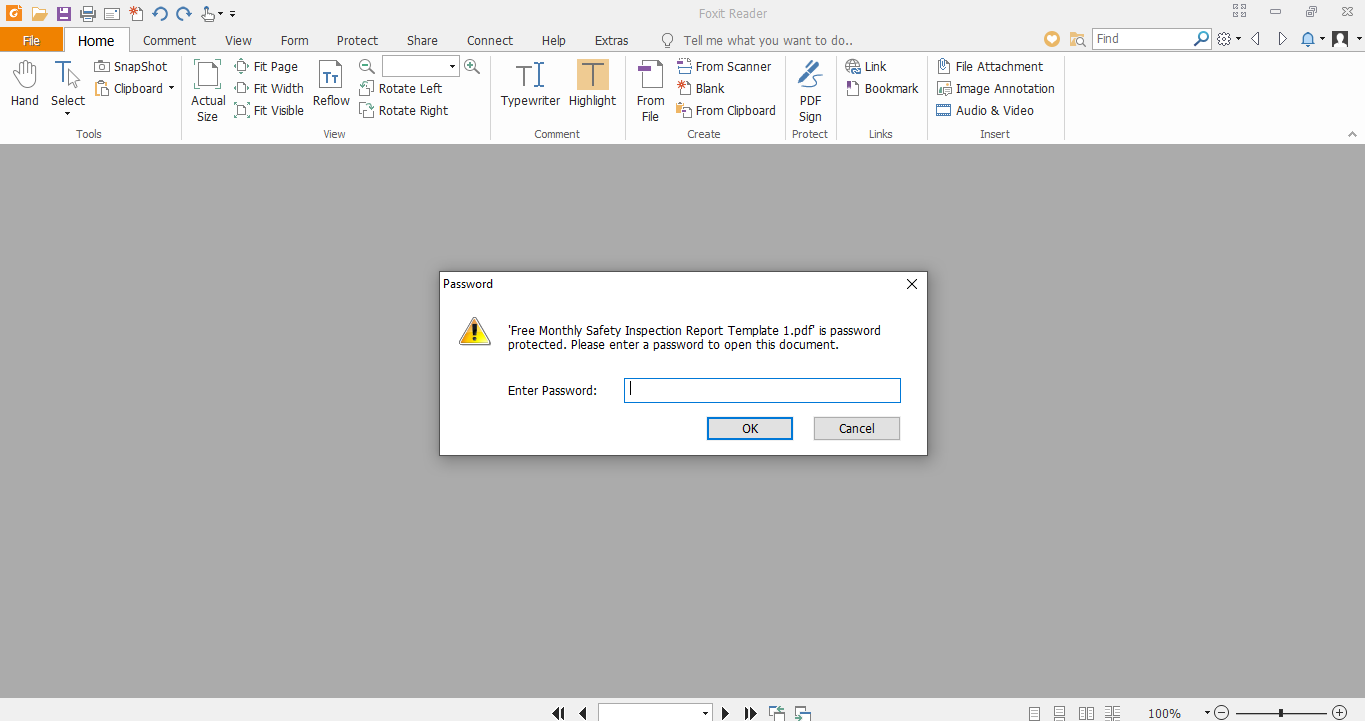
As with password-protected Word documents, there is no way to open a password-protected PDF without a password.
Can Excel Files Be Directly Converted Into Password-Protected PDFs?
Unfortunately, Excel doesn't come with this functionality. When you move to the options area in the save dialog box, there is no option for encrypting the document with a password. So, the above method may not work the same with Excel documents.
Here, you will need to convert the Excel file into a PDF, and then encrypt it with a password.
Password Protect the Data to Make It More Secure
Password-protecting sensitive documents can help ensure their security. It is easier and more secure to convert the word document directly into a password-protected PDF.
You can also use third-party tools for the same purpose. However, if documents are too sensitive, don't use non-reliable applications.
Comments
Post a Comment